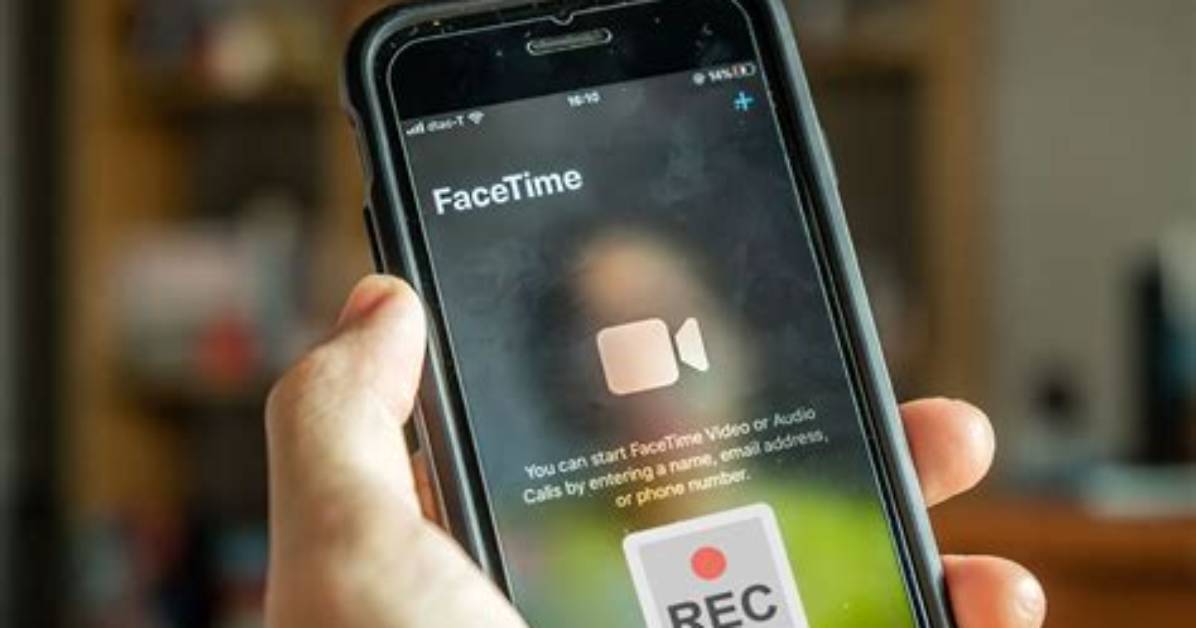
There are numerous reasons why you might consider screen recording your FaceTime calls. Here are a few key motivations:
- To preserve cherished memories with friends and family.
- To capture important business discussions for future reference.
- To create content for social media or educational purposes.
- To document interviews or podcasts.
What Are the Legal Considerations When Recording FaceTime Calls?
Before you begin recording FaceTime calls, it's crucial to understand the legal implications. In many jurisdictions, you must obtain consent from all parties involved before recording a conversation. This not only shows respect for privacy but also protects you from potential legal issues. Always inform the other person(s) that you are recording, and ensure everyone is comfortable with it.
How to Screen Record FaceTime with Audio on iPhone?
Screen recording FaceTime with audio on your iPhone is a straightforward process. Here’s a step-by-step guide:
- Open the Settings app and navigate to Control Center.
- Tap on "Customize Controls."
- Add "Screen Recording" to your list of included controls.
- Start your FaceTime call.
- Swipe down from the upper-right corner of the screen (or swipe up on older devices) to access the Control Center.
- Press and hold the Screen Recording button, and toggle on the microphone to capture audio.
- Tap "Start Recording," and your call will begin recording.
- To stop recording, return to the Control Center and tap the recording button again.

